
What Keywords Does My Website Rank For?


This post follows a recent article discussing how many hits your website gets. This time we take a look at what keywords or search terms your website actually ranks for in search engines and how you can find out. After all, where you rank in search engines, i.e. where you rank in traditional Google and Bing searches, will determine how much organic traffic you get. If search engines are important to you, you need to know what you rank for and in what position (and possibly more importantly what you don’t rank for!).
FYI, we might call them keywords but Google often refers to them as queries.
This article will teach you how to find out and how to set up the important, free tools.
First off, a quick word about search engines. According to Statcounter Google UK commanded a whopping 92% of the search engine market as of October 2025. Bing came in a long way second at 4.7%, Yahoo 1.5%, Duck Duck Go 0.7%, and Ecosia 0.27% leaving little room for ‘others’.
So we’re largely concerned with Google though we will be discussing Bing as well.
Source: StatCounter Global Stats – Search Engine Market Share
What Is a Keyword?
Good question.
A keyword is simply a word or string of words you enter into a search engine. It could be two words like ‘football scores’ or multiple words like ‘how long does it take to charge an electric vehicle?’.
Why Are Keywords Important?
Another good question!
Simply put, search engines crawl, index and rank websites based on their content. Hence, if you sell office furniture you won’t be found in searches for beaches in Thailand. If you’re a commercial lawyer you won’t be found in searches for wiring plugs (unless you wired it badly!). And if you’re an electrician you won’t be found in searches for popular walks in the Peak District.
The content on your website is directly related to what you will be known for both by people and search engines. If you don’t have the content, do not expect to rank for it.
You may be the world’s best commercial lawyer but if you don’t tell people you specialise in warehousing, IT or manufacturing, do NOT expect search engines to know either. You may be an expert tree surgeon but if you tell people you’re more of a landscape gardener, then they (and Google) may get entirely the wrong impression.
So, it’s critical you tell people what you do. Include as many products and services on your website as possible. It’s in your best interest. This is what you will be known for and what you will appear for in search results.
Furthermore, knowing what keywords you appear for will help you understand what content works best. For example if you wrote a great piece on Great Gifts for Grandmothers and it ranks on page one, and another on Great Gifts for Nephews which ranks on page five, then there is likely a lot you can learn from the success of the former.
This in turn can help determine the direction your content strategy and marketing efforts.
Google Search Console
The best tool to use to understand where you rank in Google and what for is Google Search Console (GSC). It tells you many things about the state, condition and health of your website but in the context of this article it tells you:
- What keywords you ranked for over a given period
- The position of the keyword, e.g. #5 or #50
- How many clicks you received for that keyword
- The number of impressions that keyword received, i.e. how many times your site appeared in view in Google results
- The click through rate, i.e. how many times that keyword was seen divided by the number of times it was clicked (as a percentage)
Bing has a similar tool called Bing Webmaster Tools.
And even better … they’re free!!!
So, let’s go through this step by step*.
Setting up Google Search Console
Head over to Google Search Console and login. If you don’t have an account you can create one for free. You will be prompted to do so.
Once logged in there are two ways to add a domain. The first may require a developer. The second is easier if you have access to your website’s backend:
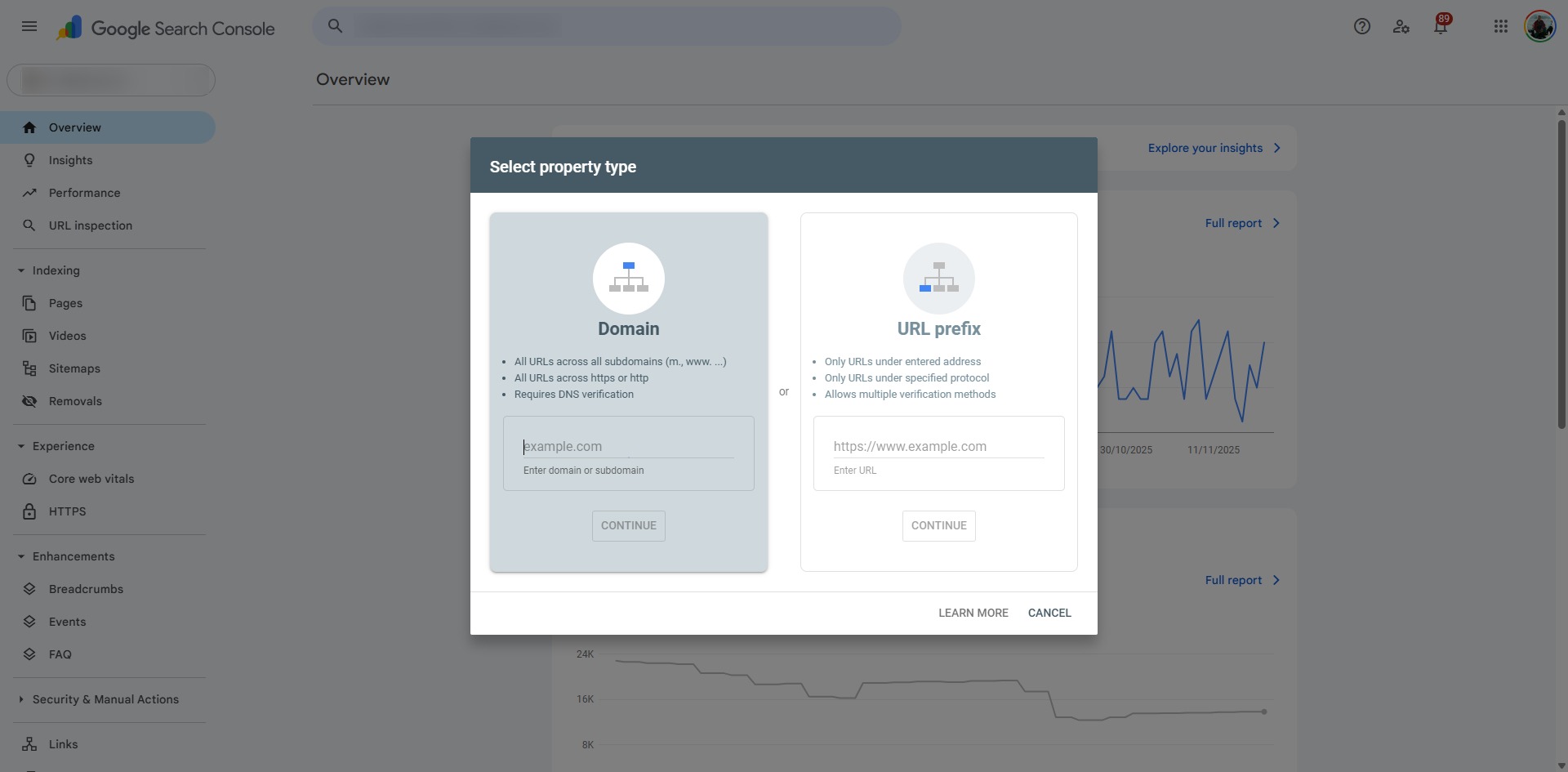
Add root domain
Perhaps slightly more tricky as you need access to your server which may strike the fear of God into some people.
On the left hand side option, start by adding just the root domain, e.g. “example.com”, with no http:// or www.
Next, you will need to add a TXT record to your server. Search Console will give you details but if you’re stuck ask your developer or IT department.
Once both steps are complete you will then be asked to verify your ownership. That’s it.
Add URL prefixes
This is easier and only takes a few minutes more. It’s quite simple, believe me.
You may or may not realise that the website URL “www.example.com” is different from “example.com” (without the www) and “http://” is different from “https://” (the latter one contains an “s”). For reasons I won’t complicate you with here please just go ahead and follow these steps:
On the right hand side of the prompt, add your domain such as https://www.example.com. Then click Continue.
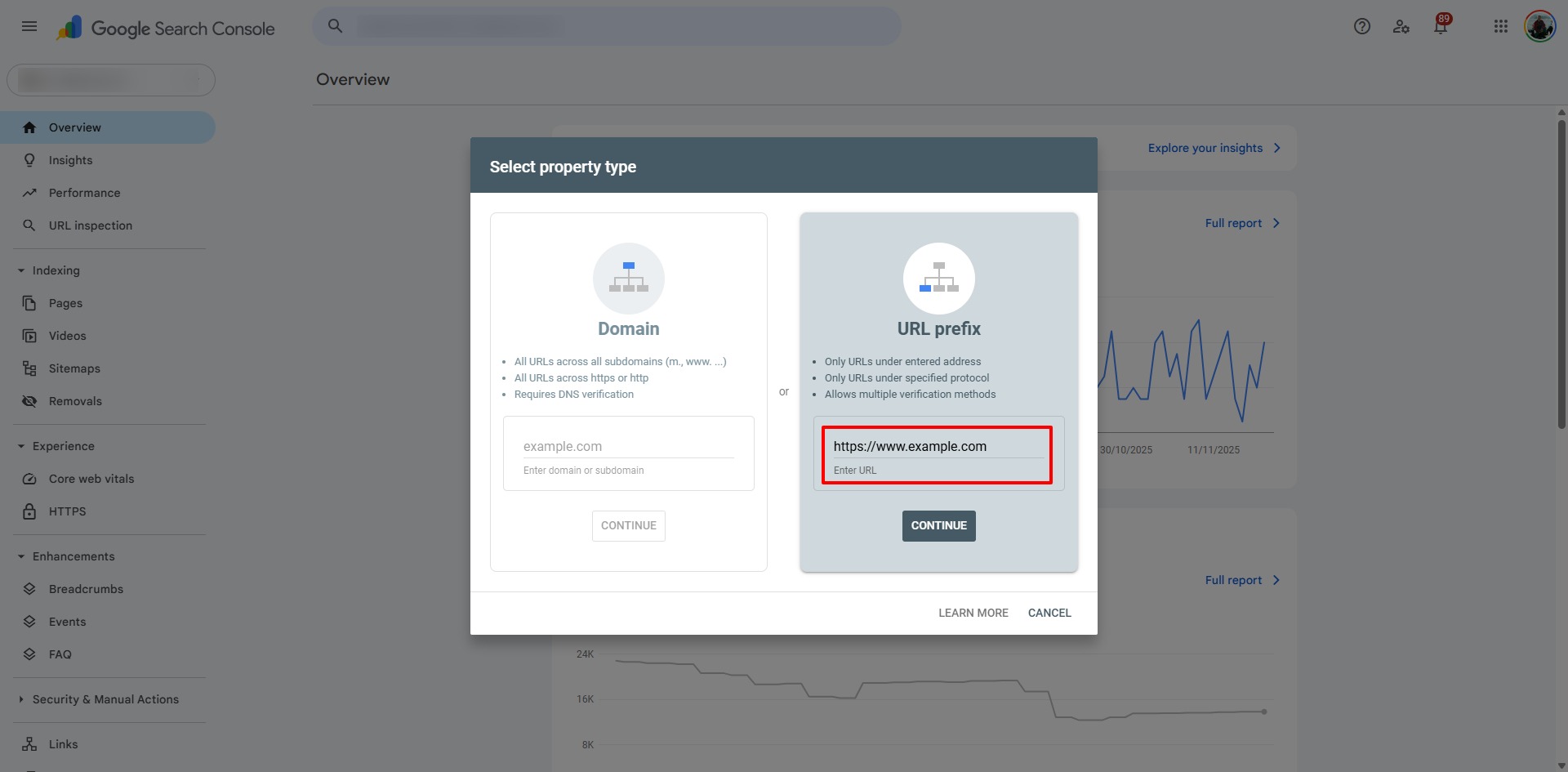
You’ll then be asked to verify ownership. You only have to do this once and can be done in several ways:
- HTML file: download the file and upload it to the public_html folder of your website
- HTML tag: copy the meta tag it shows and add it to the head section of your website’s Home page
- Google Analytics: if you already have Google Analytics installed just click Verify
- Google Tag Manager: if you are using Google tag Manager just click Verify
- Domain name provider: add a TXT record to your server
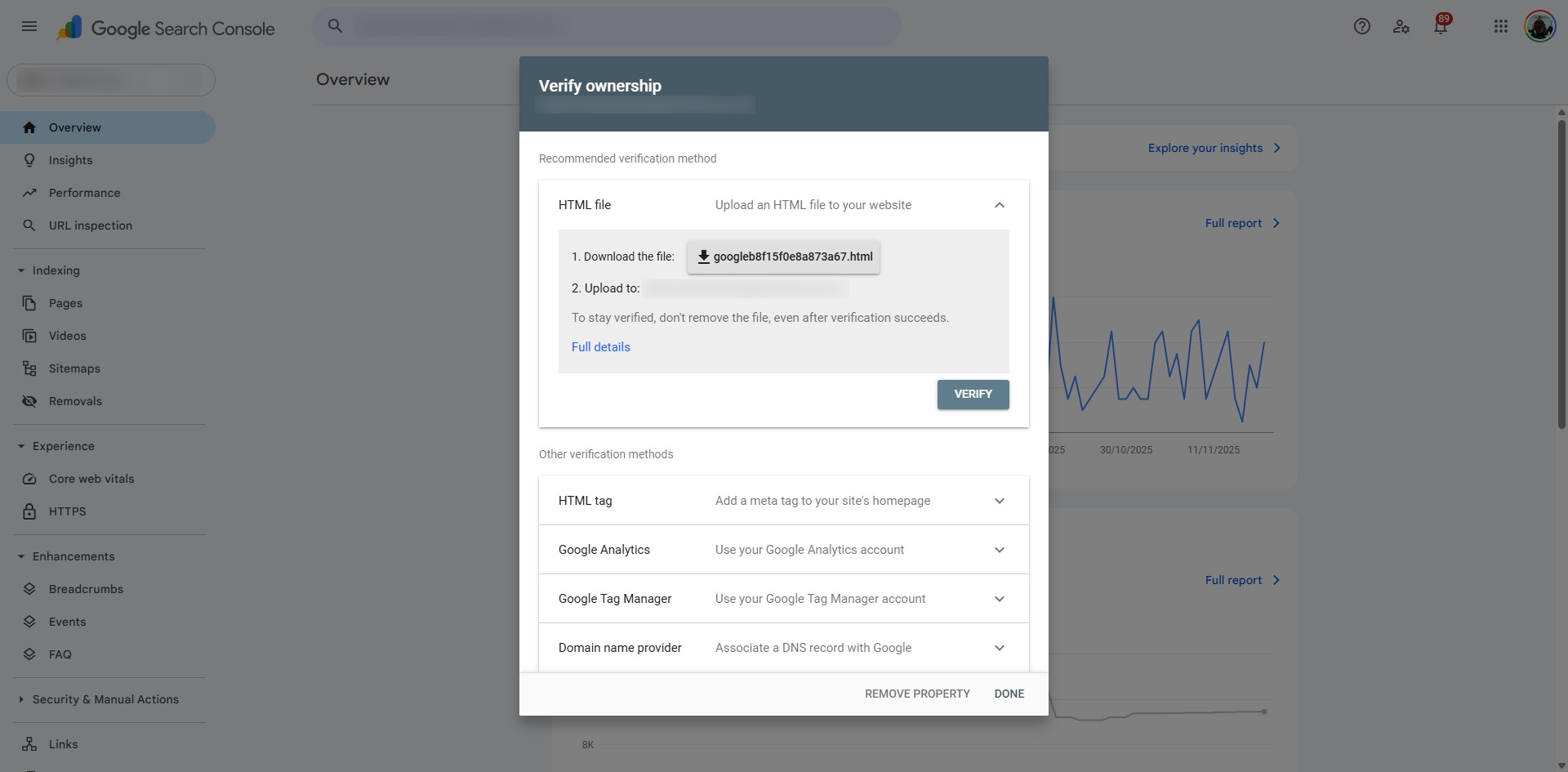
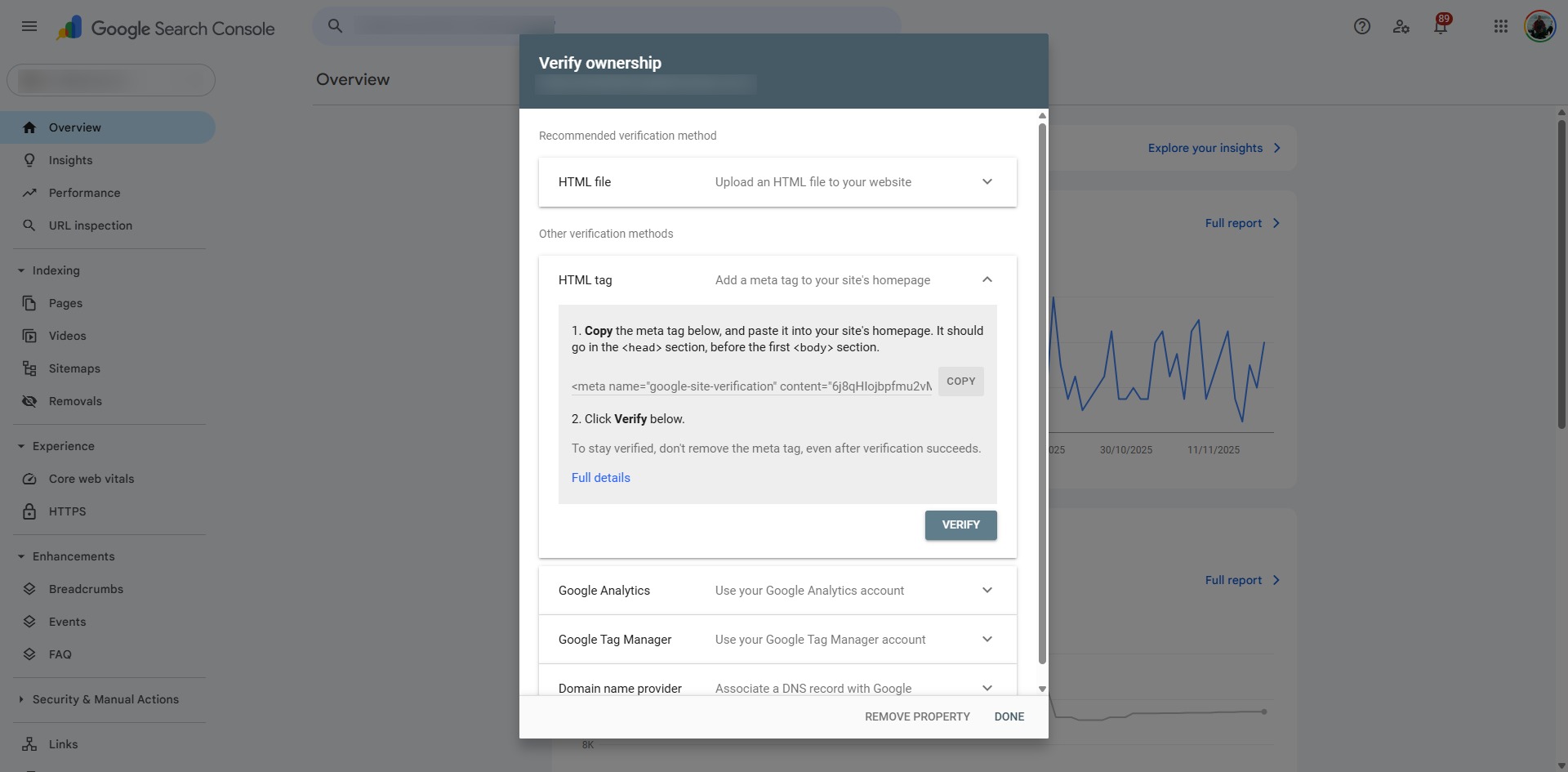
You then need to do this for each of the three other versions so you will end up with FOUR different versions in Google Searech Console:
- https://www.example.com
- https://example.com
- http://www.example.com
- http://example.com
If you have verified the domain already in the first step then subsequent verifications are simple. It will be done automatically.
Adding an XML Sitemap to Google Search Console
An XML sitemap is essentially a file on your website that tells search engines what the most important pages are on the site. That’s it. Rather than a search engine crawling your site and going hither and thither, you can tell them what’s most important (pages, blog posts, news articles, products, services, events, etc) and you can point them in the right direction.
For the uninitiated adding this may sound tricky but don’t be put off. It may just be easier for your SEO guys to do it – but it’s good practice so don’t skip it.
Sitemaps will be part of another post soon but if you use WordPress you’re in luck as this is made easy with plugins such as SEOPress, Yoast SEO, Rank Math and many others. Finding the sitemap within the plugin will be similar with each one.
In SEOPress go to XML-HTML Sitemap and copy the URL, fig. 6. It will look something like: https://www.example.com/sitemaps.xml.
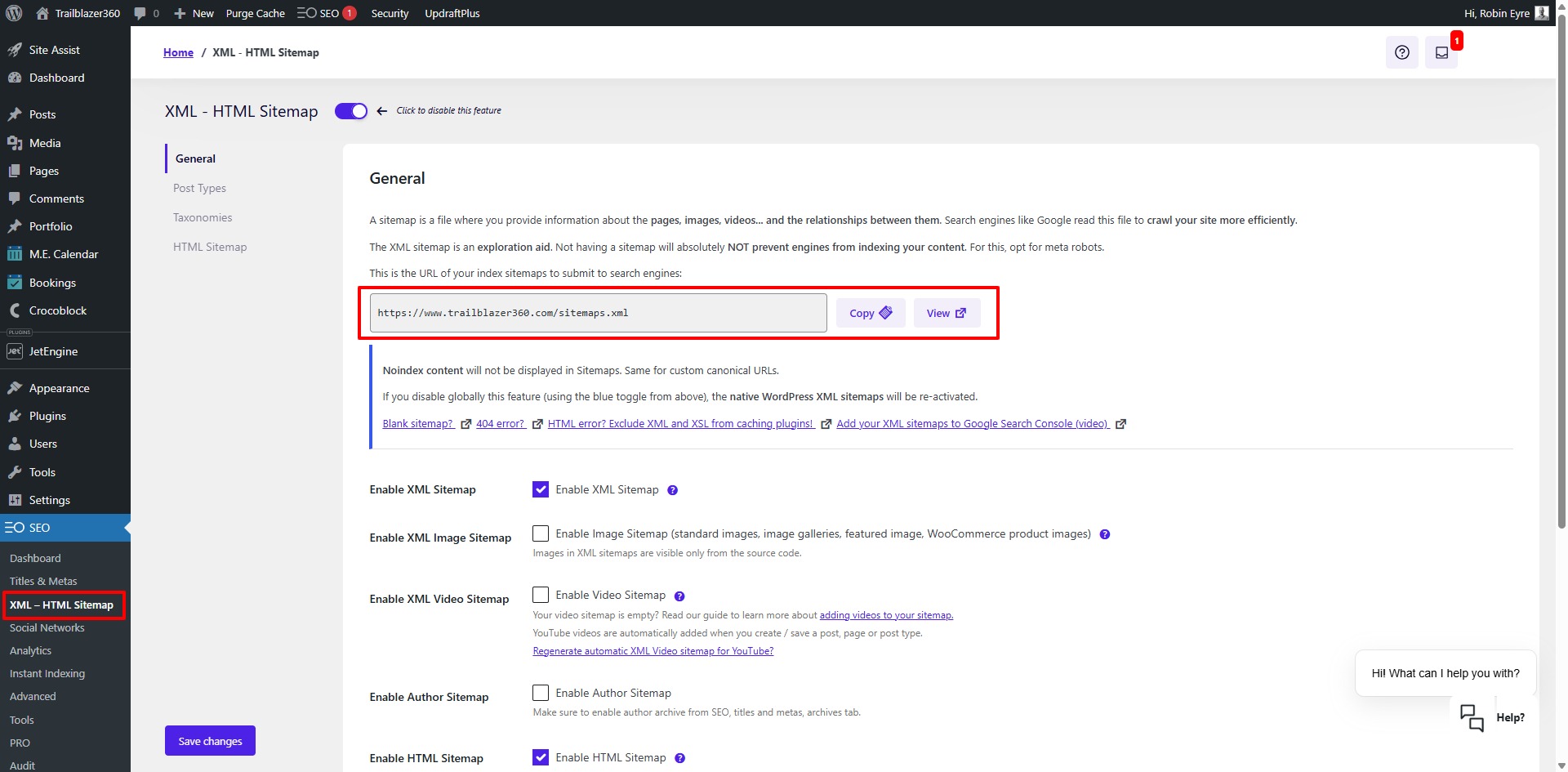
The beauty about many of these WordPress plugins is that once submitted to Google they will automatically update when you create new content! So if I was to create another blog post I would not need to recreate the sitemap.
For non-WordPress sites your content management systems (Shopify, Squarespace etc) will probably automagically create a sitemap but there are also third party solutions such as XML Sitemaps. (This latter one will however be a static sitemap taken at the time it was created so beware if you create any new content as you’ll need to update it.)
Now, return to Google Search Console, find the Sitemaps menu item and add the end of the URL (which in our case would be sitemaps.xml) > click Submit:
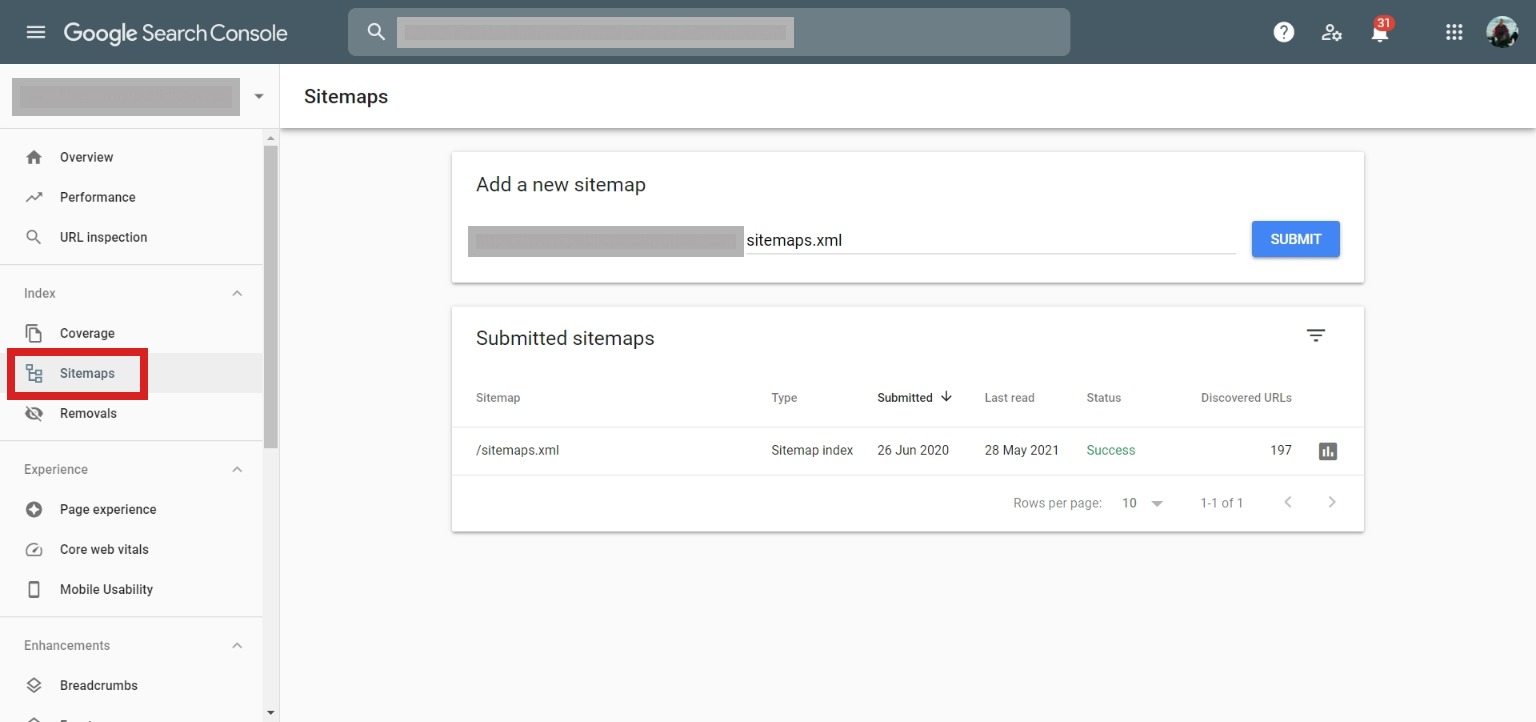
In the example above you can see that 119 pages have been discovered previously on this site. This is not instantaneous. You’ll need to wait perhaps 24 hours.
Only add the sitemap for the live version of the website, e.g. if your website is at https://www then add the sitemap to that version and NOT the others.
So, What Does Google Search Console Show?
Google Search Console does not collect data retroactively. It will begin only after you have set it up.
Depending on how recently this was you will either have no data or tons of data if your site’s a little older.
Login and go to Performance, fig. 8.
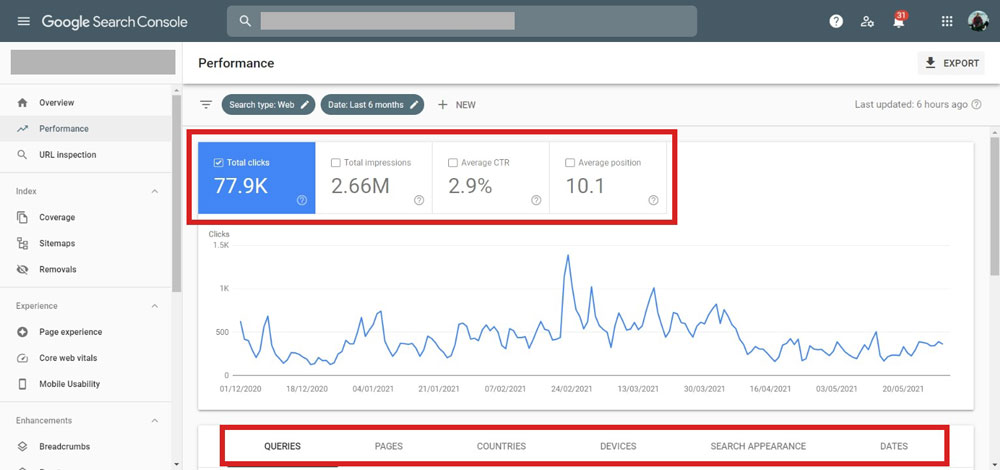
At the very top is a date range picker. Some are predetermined and the default is three months. The furthest you can go back is 16 months (unlike Google Analytics which is from the date it was set up).
You will see four clickable boxes in a chart along the top. These can be enabled or disabled by clicking them:
- Total Clicks: the number of clicks from organic search
- Total Impressions: the number of times a page on your website appeared to the searcher for that specific keyword. If you appear on page five and the searcher does not scroll through to page five you will not count an impression. If you’re on page one then you’ll get one more impression every time that keyword is searched for and viewed by the user. Do not mistake impressions with search volumes, i.e. the number of times a particular keyword is searched for
- Average CTR: “click through rate”: the number of clicks you received divided by the number of impressions
- Average Position: yeah! Where you appeared in search for that specific keyword
Scroll down a little and you can filter by specific keywords, pages, countries devices etc. I suggest you have a play. It’s pretty straight forward once you get the hang of it.
Then below that is the magic. These are the keywords you rank for in a tabulated form with columns of clicks, impressions, CTR and position. If you can’t see a column make sure you’ve clicked the box in the chart above to enable it.
You can also download the stats to an Excel file and play with and filter them there. At the top right is a button ‘Export’. Click it.
What Does Google Search Console NOT Tell You About Where You Rank?
GSC will not tell you who actually visited your site, as in John Smith from 52 Lexington Avenue, Cardiff, or John Doe from Alabama, USA. Why? Because 1) it’s highly confidential, and 2) the search engine may not know anyway as people search from all number of devices (laptop, mobile), at home and work.
For a better understanding of visitor demographics you need to visit Google Analytics.
Bing Webmaster Tools
Bing, Microsoft’s search engine, provides a similar tool to GSC called Bing Webmaster Tools and it’s like a Google Analytics and Google Search Console rolled into one.
You can set it up in a similar way to GSC. You can create a free account. Once logged in you can submit your site but you only need to submit the live version of the site – not all four versions!
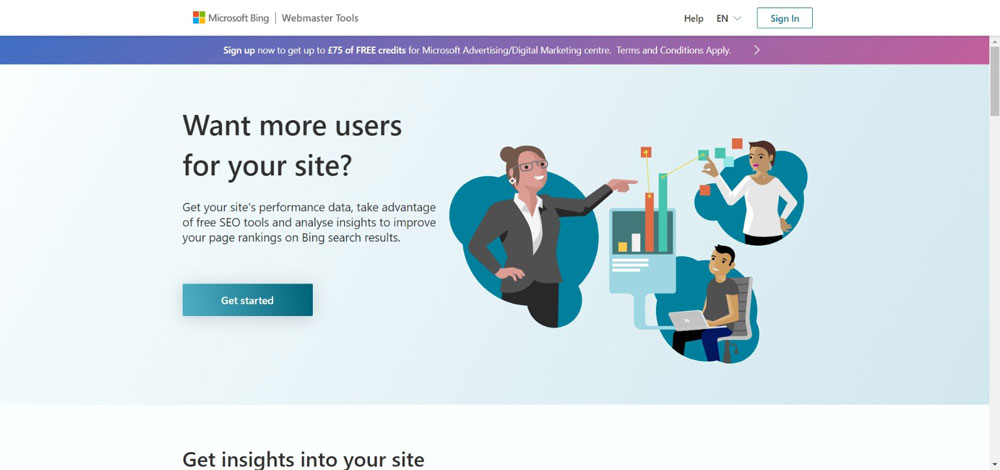
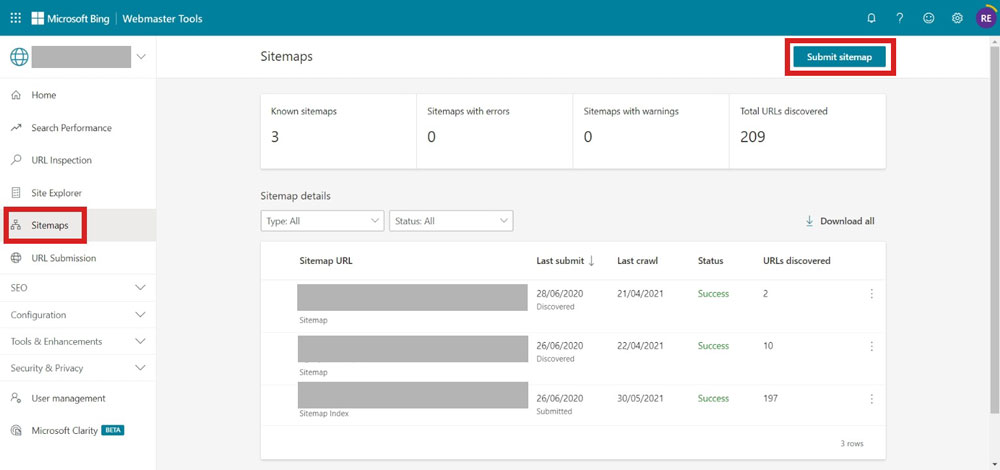
Having set it up I’d recommend adding an XML sitemap there as well:
Click on your website and go to Dashboard. You’ll be presented with an overview.
Once the platform has had time to collect data (maybe 24 hours) you will be able to see ehat the site ranks for in Bing i the same way you can in Search Console.
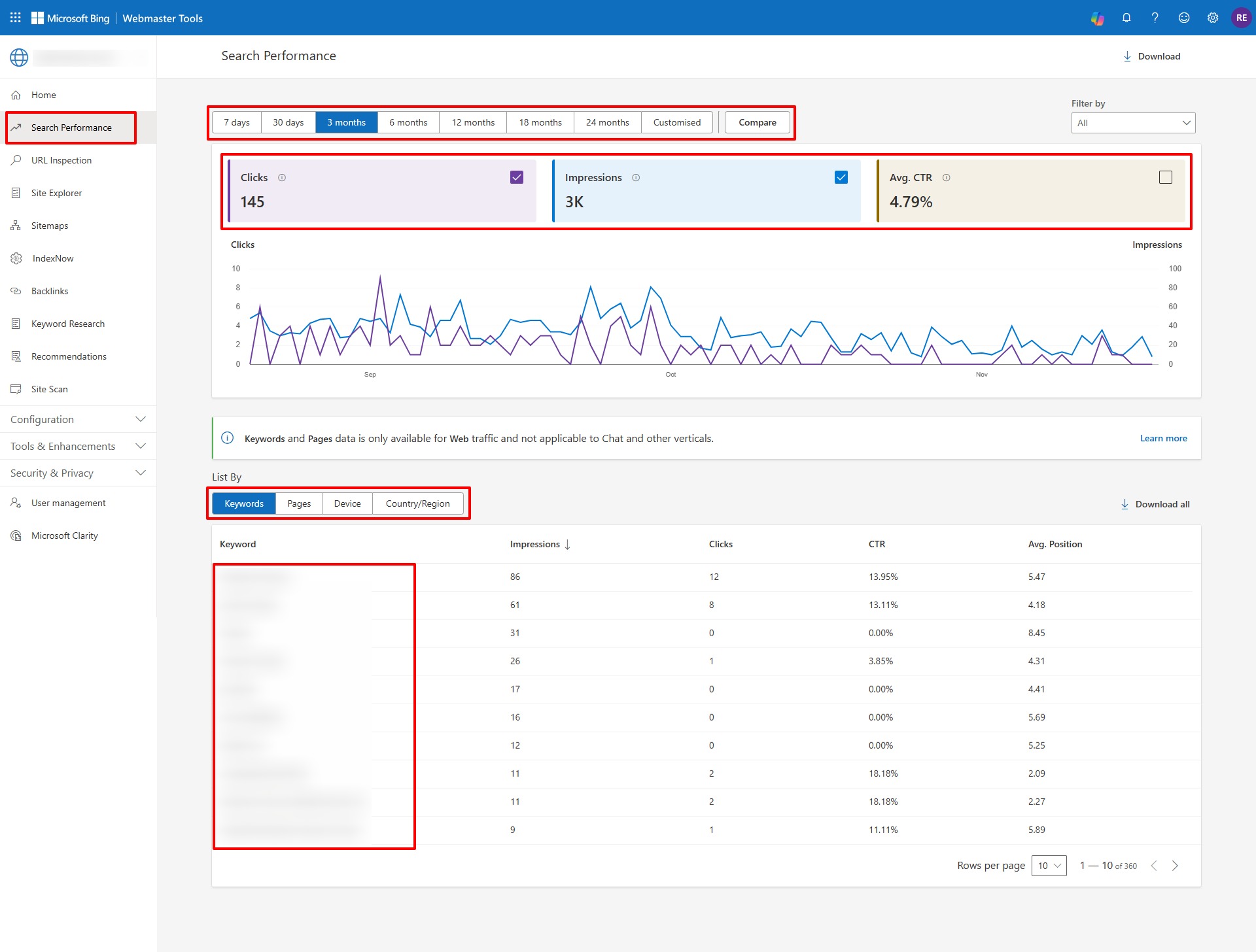
Again, have a play and see what you can find.
It really is all quite self-explanatory. But if you have any problems, you know where to come.
Let us help you grow and prosper online
Call us on 0800 6122 937
* Our website contains links to affiliate websites, and we receive affiliate commissions for purchases made through these links.



Really good information here. I’m going to save this post and go through Google search console and put these into practice.
Thanks Eric. Really glad you enjoyed the article.
I’ve gone and started adding the different variations of my site to the console. When I create new posts, I usually go through and fetch as google and request indexing. Would I have to do this with each version of the site?
Also, when I added the https version it recognized me as the owner already, but when I went to add the www version it asked me to verify my identity. If I’ve already verified it with the non www how do I verify with the www version?
Hi Eric.
Good question. No, you don’t need to fetch and render for both versions. When setting up GSC you’ll need to tell Google to point to either the www or non-www version. Give your site a little time to bed in if it’s new and start appearing in search results then return to the Search Analytics section and look at both sites. One should have zero results, the other quite a few, i.e. the one you instructed Google to point to should be the one with the results. You only need to submit to that one.
When you say “the HTTPS version” … and “the www version” you’re not comparing apples with apples. Did you mean the www version and the non-www version? Or the HTTP version and the HTTPS version?
You should go through the same verification process for both the www and non-www. I usually verify sites with Google Analytics (one of the options) or download a file to my server. GSC may have sent you a verification email.
NB: remember to add both the HTTP and HTTPS versions. You’ll end up with four versions of the site: www and non-www for both HTTP and HTTPS.
Hope that helps.
Robin
Thanks for the help man. I appreciate it. I got the 4 versions up like you said. And I’ve got my preferred one picked. Thanks again.
That’s my pleasure, Eric. Glad I could help. Let me know of I can help again.
Happy travels,
Robin